
Moodle Resources
Requisitos de finalización
7. Moodle Messages
7.1. Sending messages
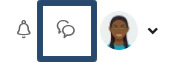 Click on the Messages icon in the Navigation Bar to open the Message Drawer.
- Type a name in the Search field and click the search icon or press enter or click on Contacts to see your contacts list.
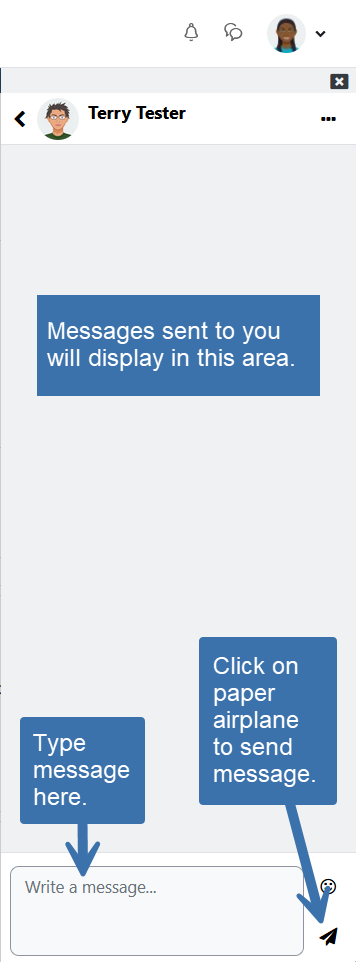 When the name of the person displays, click on the name.
- At the bottom of the screen, type a message in the message field.
- Click on the paper airplane icon to send the message.
Optional: If you want to add the person to your contacts list, click on their name again and click on the “Add to contacts” button. A request will be sent to the person. If they accept, you will be added to each other's contacts.
You can also send a message to someone from their Moodle profile.
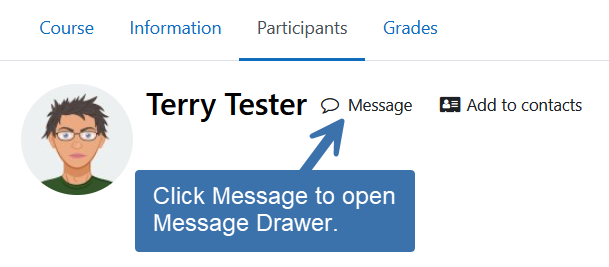 Click on Participants in the Course Menu.
- Click on the name of the person you want to contact to view their profile.
- At the top of the screen, next to the person's name, click on “Message.”
- When the Message Drawer opens, type a message in the message field.
- Click on the paper airplane icon to send the message.